Top of page
 Search
 Quick-keys
 TOC
TOC
 Index
Index



Using NUDGE mode
Nudge mode (SHIFT button). Holding the  button down activates "handles" for most objects allowing you to move them around.
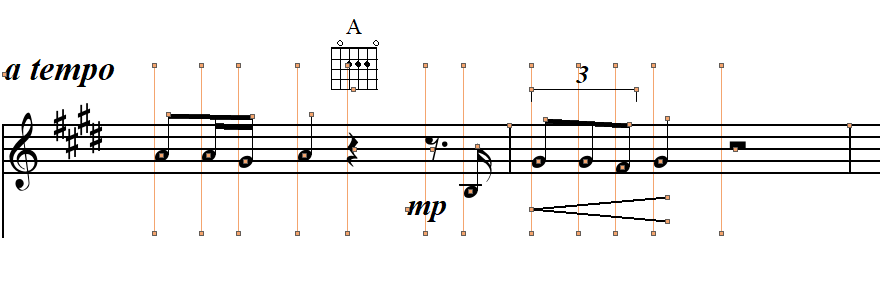
Every object will display control "handles". Click and drag the handles of an object to reposition it. You can select any group of notes and they will all move horizontally together when you Shift & drag a note.


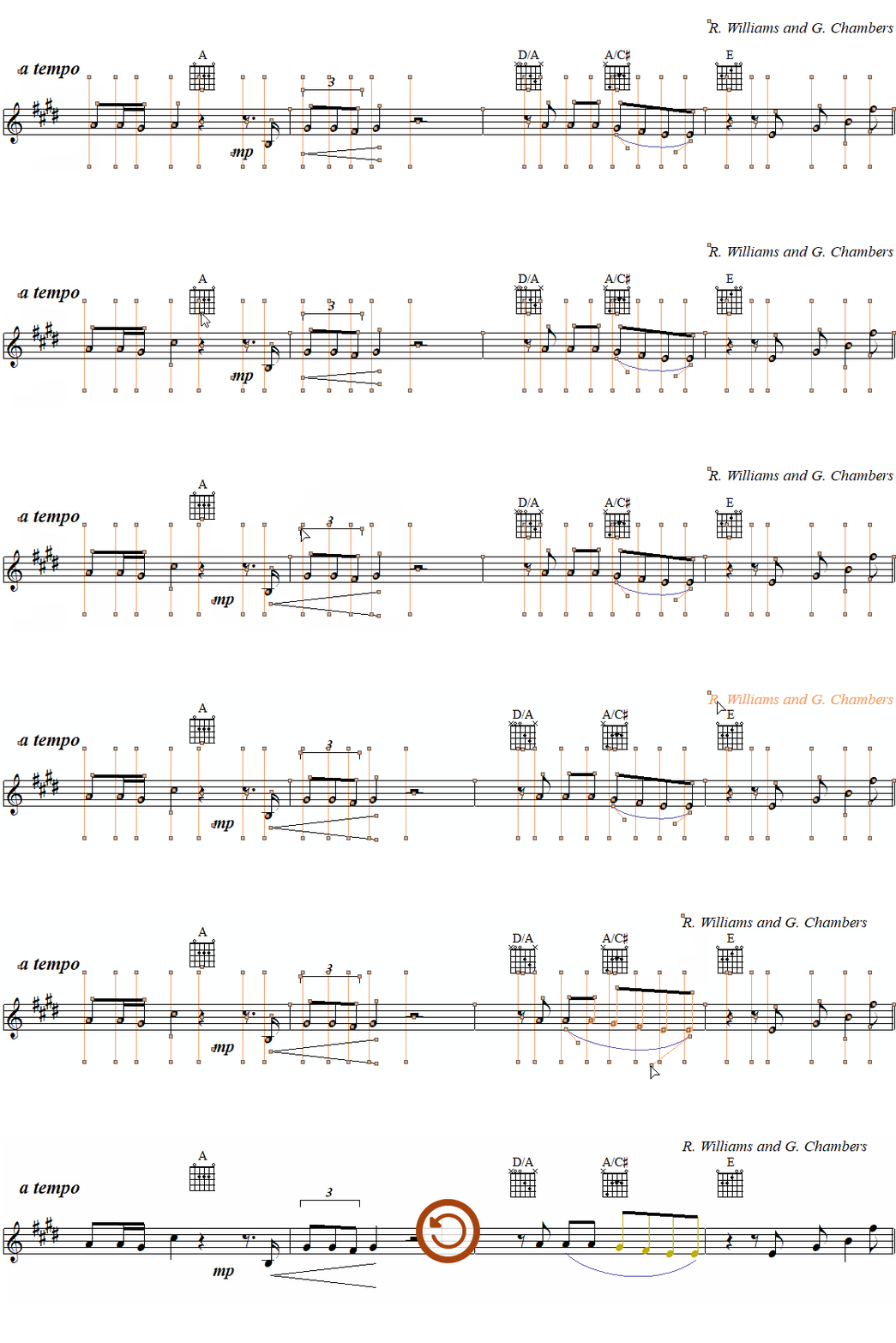
How it works …
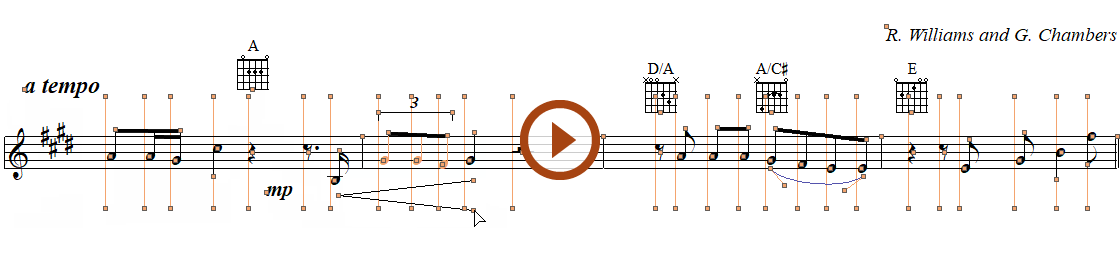
Watch NUDGE mode in action …
Cross-staff voicing
Cross-staff Voicing Note(s) may "visit" an adjacent staff for the purposes of pitch. Rhythmically, visiting notes do not apply to the adjacent staff, they’re simply acquiring new pitch values. SmartScore supports cross-staff voicing for both stemmed notes as well as beamed groups.
Cross-staff voice editing
Drag one or more (selected) note heads inside a treble staff into the adjacent bass staff (or vice-versa). Reposition the visiting note head(s) to the desired line or space (for pitch purpose only). A diagonal slash will indicate "cross-staff" movement. You may want to nudge symbols horizontally in either measure so they are aligned visually.


Cross-staff beam editing
Drag one or more (selected) note heads of a beamed group into the adjacent staff. Adjust note heads to their correct pitch. The beam may appear awkward, but you can adjust either end of the beam so it’s properly angled.


Next page ➜
Copy, Cut and Paste (Chapter overview)See also ⚆⚆
Notation Editing (Overview)Changing symbols (Overview)Stems and beamsNavigation ⚐
TOCIndexKeyword searchQuick-keysHomeMacintosh help